To use MiniMax H3 in ChatCut, switch the AI composer to Video Gen, pick MiniMax H3, choose text, Frames or References under Video settings, set a length of 4 to 15 seconds at 768p or 2K, write the shot with its sound, check the credit estimate and send. We ran each of those routes on November 20, 2026: four text prompts, a first frame, a last frame on its own, first and last frames together, a product photo with a music track, a camera move borrowed from a drone clip, a 2K render, and the same prompt on H3 Max. Below are every prompt, clip, setting and charge (33.03 credits for all 12 clips) and what to check in each take.
MiniMax released H3 on July 31, 2026. Its earlier video models were branded Hailuo (Hailuo 02, Hailuo 2.3), and Hailuo AI is still the name of MiniMax’s consumer app; H3 drops the prefix. For specs and more sample clips, see the MiniMax H3 model page.
Key takeaways
- Text alone gets the action. Our first text prompt produced the back spin, the one-handed freeze and the water spray we asked for: 8 seconds at 768p for 3.08 credits.
- Frames fix the composition. H3 takes a first frame, a last frame on its own, or both, and the clip takes the shape of your image.
- References need a job. Label each file in the prompt (@Image1, @Audio1, @Video1) and say what it controls. Frames and references can’t be combined in one request.
- Check the subject in wide shots. Our perfume bottle matched the photo in the close-up but came out slimmer in the opening wide shot.
- Know the per-second rate. In our tests 768p cost 0.384 credits a second, 2K cost 0.625, and H3 Max at 480p cost 0.24. A reference video is billed by the second too.
What you need before you start
- ChatCut on a paid plan. Video generation in ChatCut needs a paid plan, and each clip uses credits; the estimate shows beside Send before anything is charged. H3 is in Video Gen in the web editor and in ChatCut Desktop.
- One shot in mind. A subject, one action, a camera move, and how the shot ends.
- Your inputs, if any. A still for the first or last frame, or images, short video clips and audio to use as references. Use media you made or have the rights to.
MiniMax H3 and MiniMax H3 Max sit side by side in the model menu. The differences that change what you can do:
| MiniMax H3 | MiniMax H3 Max | |
|---|---|---|
| Clip length | 4–15 s | 5–15 s |
| Resolution | 768p or 2K | 480p or 768p |
| Frames | First, last, or both; a last frame can stand alone | First, or first and last; a last frame needs a first frame |
| References | Up to 9 images, 3 videos and 3 audio clips, 12 files in all | None: text, a first frame, or first and last frames only |
| What we paid per second | 0.384 credits at 768p, 0.625 at 2K | 0.384 credits at 768p, 0.24 at 480p |
Step 1: Open Video Gen and pick MiniMax H3
- Open a project and switch the AI composer from Agent to Video Gen.
- Click the model name below the composer and choose MiniMax H3 (or MiniMax H3 Max).
- Open Video settings. Under Input, choose Frames (leave both slots empty for text only) or References, then set Aspect ratio, Resolution and Duration.
- Write the prompt, check the credit estimate beside Send, and select Send message.
- Follow progress in the Media Pool, then drag the finished clip to the timeline.
You can also stay in Agent mode, attach your files and describe the shot in plain words; the Agent picks the inputs and writes the prompt. The AI video generation docs list every model’s controls.
Step 2: Start with one action in text
Write the subject, one action, the camera and the sound. H3 generates audio with every clip, so the sound line is part of the prompt, not an afterthought.
What to check: the back spin, the one-handed freeze and the spray off the coat are all there, and he finishes on his feet. That is about as many moves as we would put in eight seconds; if one goes missing, cut the list down rather than adding adjectives. Turn the sound on and listen for each sound you named.
Three more text-only shots
These test fire, water and a face. Each is 16:9, 8 seconds at 768p, and cost 3.08 credits.
Fire, then a push in to the plate.
What to check: the flame bursts in the first second, the food goes onto the plate, and the camera ends close on the dish. We could not see a clear toss and catch. In eight seconds, one big action and a clear ending is safer than three actions in a row.
Underwater, with a large animal close to the lens.
What to check: the spotted skin slides past the lens, the diver stays at a distance, and the fish scatter at the start. This was the cleanest of the four text clips.
A face in close-up.
What to check: he lowers the letter and the camera pushes in from a medium shot to a close-up of his face. We asked for one quiet line; the soundtrack of our take is quiet and we could not make out the words, so listen before you build an edit on it, and record the line separately if the wording has to be exact.
Step 3: Start on your image with a first frame
In Video settings → Input, choose Frames and drop your image on First frame. The prompt then only has to describe what happens next. MiniMax’s prompt-writing guide suggests the same order for this mode: anchor on what is in the image, then the action, then how it develops.
What to check: the clip opens on our image, a woman in a yellow raincoat walking a corgi past a red phone box, then she pulls her hood back while the corgi trots ahead through the puddles. The output is 3:4 because the image is: in frame mode H3 takes the aspect ratio from the frame, so crop your image to the shape you need before you upload it.
Step 4: End on your image with a last frame only
H3 can take a last frame with no first frame. It then works out an opening that leads into your picture, which suits a reveal that has to land on one exact shot. (H3 Max needs a first frame whenever you add a last one.) Say where the shot should start; otherwise H3 has to guess.

What to check: the clip opens on the coiled rope and the blue boat, rises over the moored boats and settles on our harbour image. Compare the final frame with your image before you cut to the next shot.
Step 5: Move between two images with first and last frames
Give H3 the start and the end, and describe the change in between. MiniMax’s guide puts it as a path from the first frame through visible intermediate changes to the last.
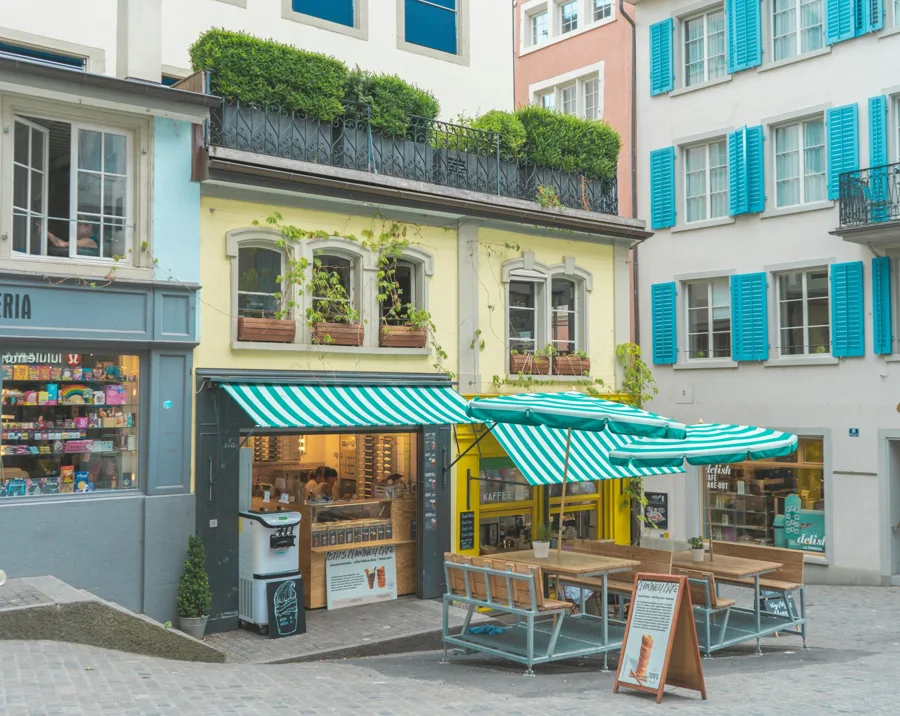
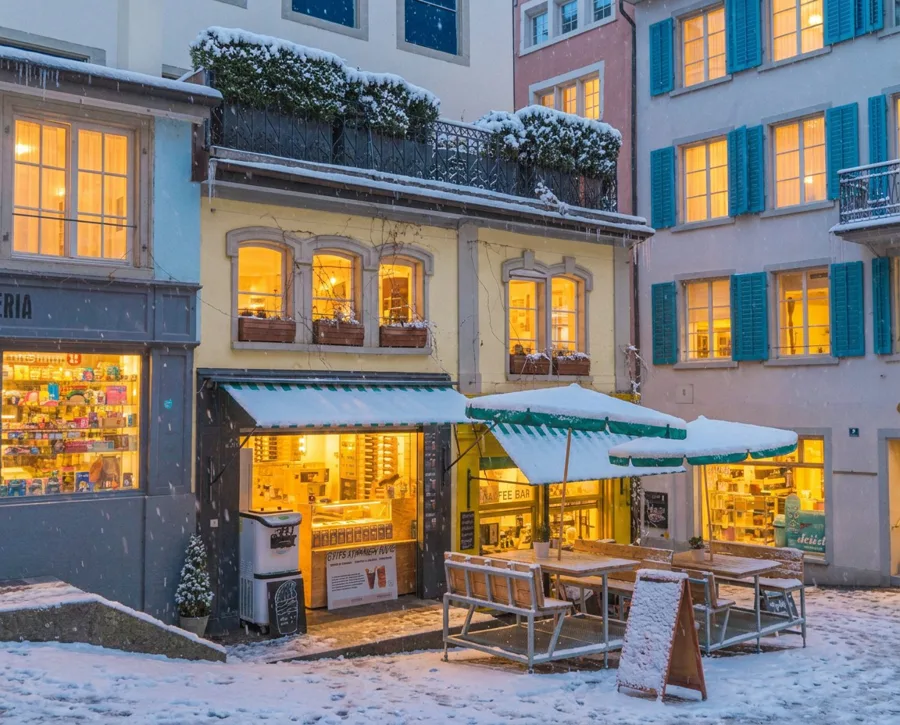
What to check: snow starts falling and settles on the plants, awnings and tables, the light turns blue, the shop windows light up, and the shot lands on the last frame. We kept both frames on the same framing and asked for a locked-off shot, so H3 only had to change the weather and the light.
Step 6: Use a product photo and a music track as references
References guide how things look, move or sound without fixing a frame; they work on H3, not H3 Max. In Video settings → Input, choose References and add the files in order, then name each one in the prompt (@Image1, @Video1, @Audio1) and say what it controls. One H3 request takes up to 9 images, 3 videos and 3 audio clips, 12 files in all; each video or audio clip must run 2 to 15 seconds, with 15 seconds per type in total. The references guide covers formats.
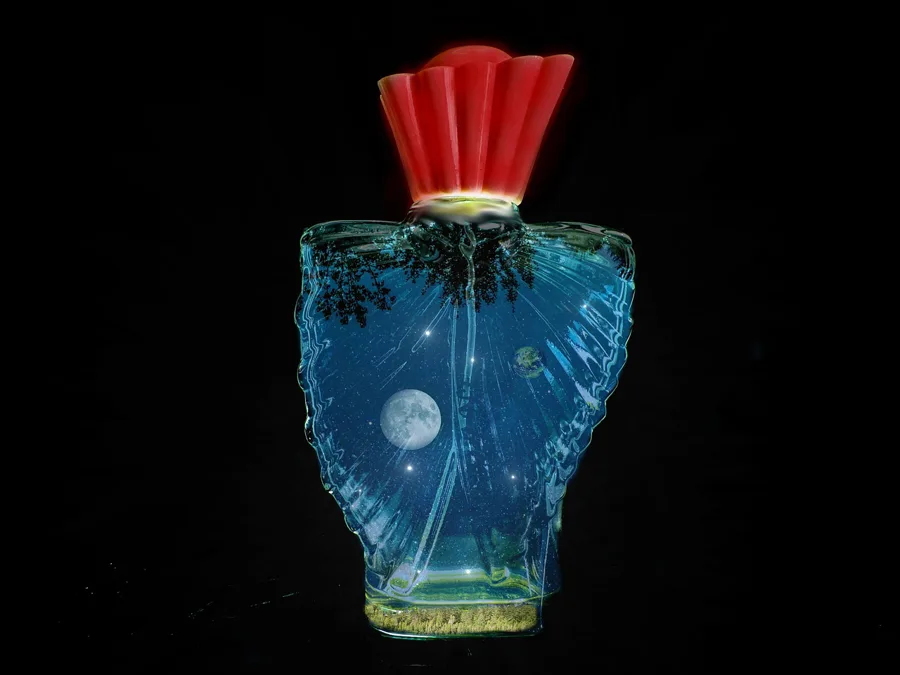
What to check: the close-up in the second half matches the photo well: the fluted red cap, the blue glass, and the moon and trees inside it, lit from within. The opening wide shot does not. Drops fall and ring the water as asked, but the bottle there is slimmer than the real one. Check the product’s proportions in every shot, not just the close-ups; if a wide shot drifts, trim it on the timeline or generate the close-up on its own.
The clip cost 2.31 credits, about what 6 seconds of text-only video costs at 768p. On H3 the audio reference is free, and so are the first five images.
Step 7: Borrow a camera move from a video
Add a video as a reference and say it supplies the camera movement only. Then describe a new scene, and tell H3 not to copy the reference’s landscape.
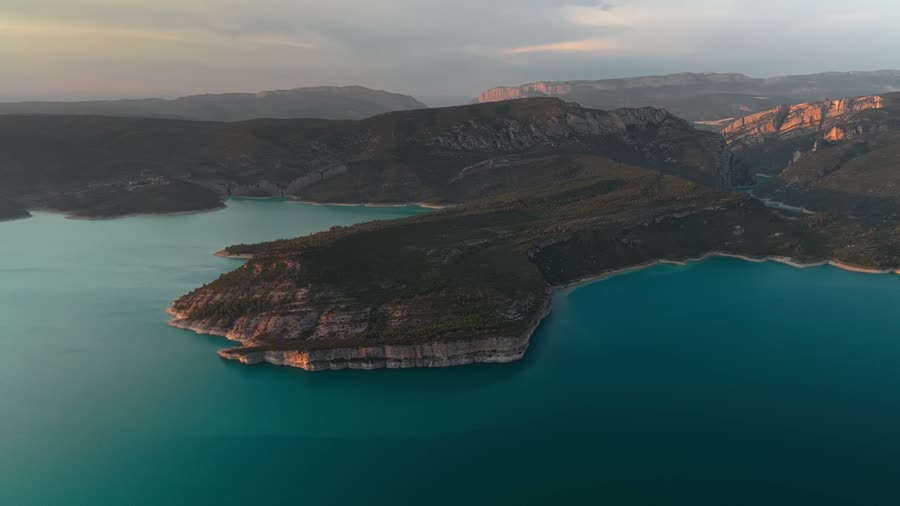
What to check: a slow, high drift over a red canyon bend with a green river, and none of the lake or its colours. The move is as gentle as the reference’s; pick a reference that already moves the way you want.
This was the most expensive 768p clip in our set. H3 bills a reference video by the second at the output rate, so the 8-second reference plus the 5-second clip came to 5.00 credits. Trim a reference down to the move you need (at least 2 seconds) before you add it.
Step 8: Render at 2K once the shot works
Set Resolution to 2K for a 2560×1440 clip at 16:9. 2K cost 0.625 credits a second in our test against 0.384 at 768p, so settle the prompt at 768p first. A 2K request is a new generation: expect a new take, not your 768p clip at a higher resolution.
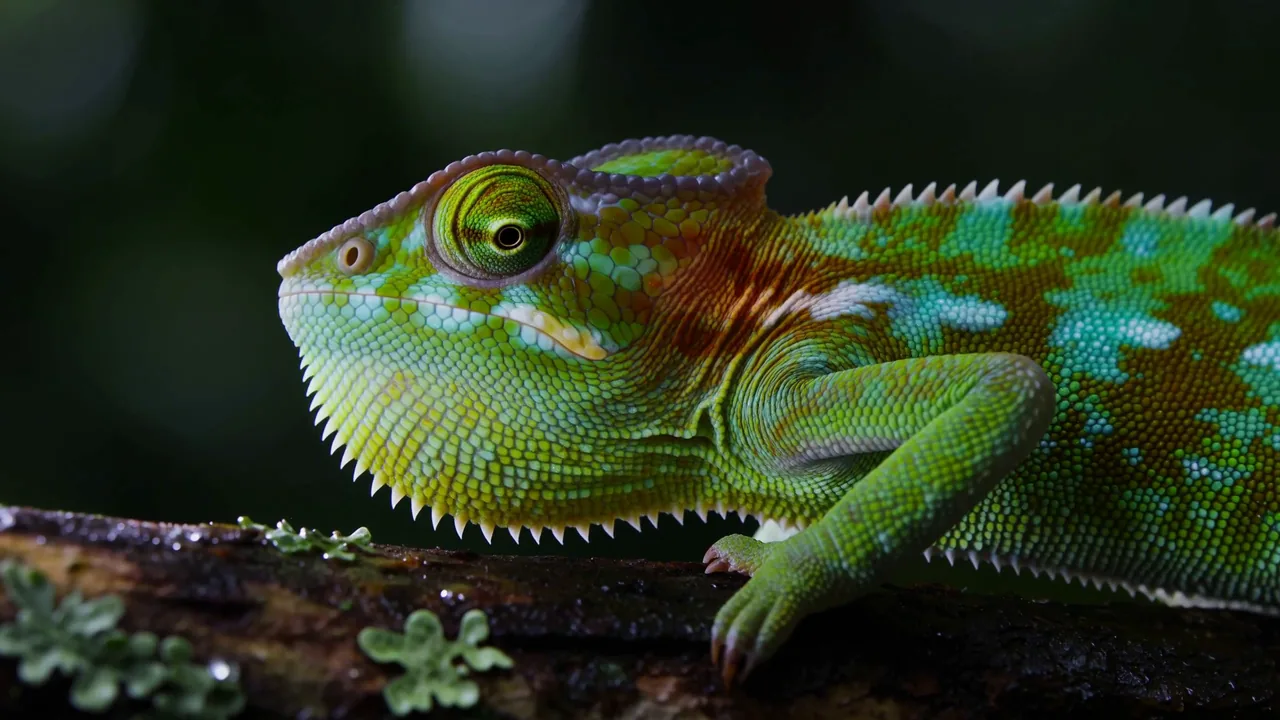
What to check: at 2K, look at fine texture at full size. Here the scales and the crest stay sharp while the colour moves from green to orange along the body.
MiniMax H3 vs H3 Max: the same prompt on both
H3 Max is a separate model in the same menu; fal, which built it, describes it as a post-trained version of H3. In ChatCut it runs 5 to 15 seconds at 480p or 768p, with no 2K. It works from text, a first frame, or first and last frames (a last frame needs a first frame); it does not take reference images, videos or audio, so steps 6 and 7 are H3 only. We ran only text prompts on H3 Max.
We sent the step 2 breakdance prompt to both, 16:9, 8 seconds at 768p:
What differed: H3 stayed low and close on the spins and the freeze. H3 Max framed it wider and darker, with the dancer kicking off the court into a one-handed hold before he lands. The price was the same at 768p. One pair of takes can’t rank the two models; it does show that the same prompt gives a different shot, so if you like a framing, stay on that model for the retakes.
H3 Max also offers 480p, the cheapest setting we used: this 6-second vertical clip cost 1.44 credits.
What to check: the pour, the pattern blooming in the crema and the cup sliding toward the camera all happen. We asked for a tulip and got a leaf-shaped rosetta. A 480p draft is a cheap way to find out whether a detail like that holds before you pay for 768p.
Step 9: Trim the clip and edit it into a video
A generated clip is a shot, not a finished video. Drag it from the Media Pool to the timeline, trim the start and the end, and place it beside your other shots. Add editable text for exact names or a call to action, adjust the generated audio, add a voiceover or music if you need them, and review the whole sequence before you export.
A good 8-second take may give you three usable seconds; keep the part that serves the cut. Because generation and editing share one project, a retake is one prompt away instead of an export and re-import.
What our 12 clips cost
| Clip | Model | Settings | Credits |
|---|---|---|---|
| Breakdancer (text) | H3 | 16:9, 8 s, 768p | 3.08 |
| Flambé (text) | H3 | 16:9, 8 s, 768p | 3.08 |
| Whale shark (text) | H3 | 16:9, 8 s, 768p | 3.08 |
| Fisherman (text) | H3 | 16:9, 8 s, 768p | 3.08 |
| Raincoat and corgi (first frame) | H3 | 3:4, 5 s, 768p | 1.92 |
| Harbour (last frame only) | H3 | 3:2, 5 s, 768p | 1.92 |
| Street corner (first and last frames) | H3 | 5:4, 5 s, 768p | 1.92 |
| Perfume (image and audio references) | H3 | 16:9, 6 s, 768p | 2.31 |
| Canyon (8-second video reference) | H3 | 16:9, 5 s, 768p | 5.00 |
| Chameleon | H3 | 16:9, 5 s, 2K | 3.12 |
| Breakdancer (same prompt) | H3 Max | 16:9, 8 s, 768p | 3.08 |
| Latte art | H3 Max | 9:16, 6 s, 480p | 1.44 |
| Total | 33.03 |
All 12 clips cost 33.03 credits, about $8 at a credit’s $0.25 face value. Every take is charged, including the ones you throw away, so test at 768p (or 480p on H3 Max) and change one thing per retry.
Review every take
| Check | Ask yourself |
|---|---|
| Subject | Does the same person or product stay recognizable, in wide shots as well as close-ups? |
| Action | Does each action you asked for begin, finish, and happen in the right order? |
| Contact | Do hands, tools and objects meet plausibly? |
| Camera | Does the camera move only as requested? |
| Sound | Are the sounds you named there, and does any speech say what you wrote? |
| Ending | Can the final moment cut cleanly into the next shot? |
MiniMax H3 troubleshooting
| Problem | What we saw | Fix |
|---|---|---|
| A product changes shape in a wide shot | The perfume bottle slimmed down in the opening wide shot | Keep the product large in frame, generate the close-up alone, or use the photo as a first frame |
| An action goes missing | The chef’s toss and catch didn’t show | One big action per clip, and say how it ends |
| A small detail comes out different | A tulip became a rosetta | Describe the detail more precisely and test it on a cheap draft |
| Speech is too quiet to use | The fisherman’s line was hard to hear | Listen before you edit; record the line separately if the words matter |
| The camera barely moves | The video-referenced drift was gentle | Choose a reference that already moves the way you want |
| Frames and references won’t go together | They are separate input families | Frames for an exact first or last picture; references for look, motion and sound |
| H3 Max won’t take a lone last frame or a reference | It works from text and frames only, and a last frame needs a first frame | Add a first frame, or switch to H3 for references and last-frame-only shots |
| Music you didn’t want | Sound wasn’t described | Describe ambience and music separately, write “no music”, or mute it on the timeline |
Next steps
Start with one text prompt at 768p, check it against the list above, and add a frame or a reference only when you need control that text can’t give. The MiniMax H3 model page has more clips and the full specs. To change or continue a clip you already have, use a model with Edit video and Extend video modes, such as Seedance 2.5 Flash or Gemini Omni; for a single take longer than 15 seconds, use Seedance 2.5.